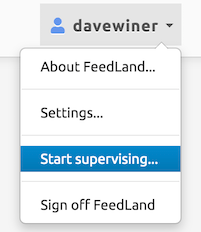
If are an admin user, the UI of FeedLand will have a new command in the System menu, the menu at the right edge of the screen. If you are not an admin user, you won’t see this command.
Initially, the command will be Start Supervising.
When you choose Start Supervising, a dialog appears asking for the screenname of the user you want to supervise. If you enter the name of an actual user, the name in the upper right corner will change to the name of that user, and appear in green, so you know you’re in Supervisor Mode for that user. In that mode, everything you do in FeedLand should be exactly as the other user would see it if they were using the product.
If you want to test it, try the Settings command, also in the System menu, change a value, click OK, and reload the page, and reopen the Settings dialog to be sure the changed version appears. You should probably switch it back to the original value, since this was just a test.
When you want to stop supervising, choose the Stop Supervising command from the System menu. A confirming dialog appears, if you click OK you leave Supervisor Mode and return to your own account.
To turn someone into an admin user, you must (at this time) have the ability to enter a MySQL command to change the role of the user. I’ve included a one-line command that does this in the docs for this upate.